Quando ho dubbi o devo imparare qualcosa di nuovo, mi trovo bene con Grok, ma anche gli altri (ChatGPT, Perplexity, Gemini, etc.) solitamente se la cavano con quesiti non troppo complessi (nei casi più articolati chiedo a più bot e poi scelgo quello che mi convince di più; per farlo avevo uno script, ma dovrei aggiornarlo perché hanno cambiato le pagine di accesso). L'importante, come hai già notato, è avere un po' di pazienza e confezionare dei prompt ben ragionati, in modo che l'AI vada dritta al punto.

Per favore, aggiungi TurboLab.it alle eccezioni del tuo Ad Blocker. Siamo un progetto no-profit, e la pubblicità è indispensabile per pagare le spese.
In alternativa, puoi sostenerci con una donazione.
Rispetteremo ogni tua scelta, e potrai sempre utilizzare il sito senza limitazioni.
×
 Ricerca articoli
Cerca e inserisci il collegamento a un articolo pubblicato da TurboLab.it
Digita almeno 3 caratteri, poi premi "Invio"
... e le chiamano AI
Regole del forum
-
Zigul

- VIP

- Messaggi: 828
- Iscritto il: dom ott 08, 2023 12:11 am
- Has thanked: 77 times
- Been thanked: 117 times
Re: ... e le chiamano AI
Per favore, aggiungi TurboLab.it alle eccezioni del tuo Ad Blocker. Siamo un progetto no-profit, e la pubblicità è indispensabile per pagare le spese.
In alternativa, puoi sostenerci con una donazione.
Rispetteremo ogni tua scelta, e potrai sempre utilizzare il sito senza limitazioni.
Quando ho dubbi o devo imparare qualcosa di nuovo, mi trovo bene con Grok, ma anche gli altri (ChatGPT, Perplexity, Gemini, etc.) solitamente se la cavano con quesiti non troppo complessi (nei casi più articolati chiedo a più bot e poi scelgo quello che mi convince di più; per farlo avevo uno script, ma dovrei aggiornarlo perché hanno cambiato le pagine di accesso). L'importante, come hai già notato, è avere un po' di pazienza e confezionare dei prompt ben ragionati, in modo che l'AI vada dritta al punto.
-
ctsvevo

- Gran Maestro Revisore

- Messaggi: 822
- Iscritto il: sab lug 24, 2021 9:19 pm
- Has thanked: 14 times
- Been thanked: 34 times
Re: ... e le chiamano AI
Prova Mouse Jiggler.crazy.cat ha scritto: sab mar 14, 2026 7:54 am In questi giorni stavo cercando degli script che simulano l'attività di mouse o tastiera per impedire che il computer vada in standby.

Se non lo trovi online, dovrei avercelo io da qualche parte su uno dei miei PC.
https://forum.mozillaitalia.org/index.php?topic=79685.0
-
crazy.cat

- Amministratore

- Messaggi: 13720
- Iscritto il: mer mag 01, 2013 4:02 pm
- Località: Noventa Padovana
- Has thanked: 12 times
- Been thanked: 162 times
Re: ... e le chiamano AI
 ma volevo trovare solo degli script powershell che simulano i movimenti del mouse e la pressione del tasto F15 sulla tastiera per mantenere il pc attivo.
Oltre a mettere alla prova chatgpt

-
crazy.cat
- Amministratore
- Messaggi: 13720
- Iscritto il: mer mag 01, 2013 4:02 pm
- Località: Noventa Padovana
- Has thanked: 12 times
- Been thanked: 162 times
Re: ... e le chiamano AI
$TopDir = "d:\telelavoro"
$ReportPath = "d:\report_cartelle.csv"
# 1. Recupero lista directory
$DirList = Get-ChildItem -LiteralPath $TopDir -Directory -Recurse -Force
# 2. Elaborazione dati cartelle
$Results = foreach ($DL_Item in $DirList) {
$FileList = Get-ChildItem -LiteralPath $DL_Item.FullName -File -Force -Recurse
$TotalBytes = ($FileList | Measure-Object -Property Length -Sum).Sum
if ($null -eq $TotalBytes) { $TotalBytes = 0 }
[PSCustomObject]@{
Cartella = $DL_Item.FullName
File_Count = $FileList.Count
Size_KB = [math]::Round($TotalBytes / 1KB, 2)
Size_MB = [math]::Round($TotalBytes / 1MB, 2)
Size_GB = [math]::Round($TotalBytes / 1GB, 4)
}
}
# 3. Calcolo del TOTALE complessivo
$GrandTotalBytes = ($Results | Measure-Object -Property Size_MB -Sum).Sum * 1MB
$TotalRow = [PSCustomObject]@{
Cartella = "--- TOTALE COMPLESSIVO ---"
File_Count = ($Results | Measure-Object -Property File_Count -Sum).Sum
Size_KB = [math]::Round($GrandTotalBytes / 1KB, 2)
Size_MB = [math]::Round($GrandTotalBytes / 1MB, 2)
Size_GB = [math]::Round($GrandTotalBytes / 1GB, 4)
}
# 4. Unione risultati e riga totale
$FinalOutput = $Results | Sort-Object -Property Size_MB -Descending
$FinalOutput += $TotalRow
# 5. Esportazione per Excel
# Usiamo il delimitatore punto e virgola ';' per l'apertura automatica corretta in Excel (regionale IT)
$FinalOutput | Export-Csv -Path $ReportPath -NoTypeInformation -Delimiter ";" -Encoding UTF8
Write-Host "Report generato con successo in: $ReportPath" -ForegroundColor Green
$FinalOutput | Format-Table -AutoSize
$ReportPath = "d:\report_cartelle.csv"
# 1. Recupero lista directory
$DirList = Get-ChildItem -LiteralPath $TopDir -Directory -Recurse -Force
# 2. Elaborazione dati cartelle
$Results = foreach ($DL_Item in $DirList) {
$FileList = Get-ChildItem -LiteralPath $DL_Item.FullName -File -Force -Recurse
$TotalBytes = ($FileList | Measure-Object -Property Length -Sum).Sum
if ($null -eq $TotalBytes) { $TotalBytes = 0 }
[PSCustomObject]@{
Cartella = $DL_Item.FullName
File_Count = $FileList.Count
Size_KB = [math]::Round($TotalBytes / 1KB, 2)
Size_MB = [math]::Round($TotalBytes / 1MB, 2)
Size_GB = [math]::Round($TotalBytes / 1GB, 4)
}
}
# 3. Calcolo del TOTALE complessivo
$GrandTotalBytes = ($Results | Measure-Object -Property Size_MB -Sum).Sum * 1MB
$TotalRow = [PSCustomObject]@{
Cartella = "--- TOTALE COMPLESSIVO ---"
File_Count = ($Results | Measure-Object -Property File_Count -Sum).Sum
Size_KB = [math]::Round($GrandTotalBytes / 1KB, 2)
Size_MB = [math]::Round($GrandTotalBytes / 1MB, 2)
Size_GB = [math]::Round($GrandTotalBytes / 1GB, 4)
}
# 4. Unione risultati e riga totale
$FinalOutput = $Results | Sort-Object -Property Size_MB -Descending
$FinalOutput += $TotalRow
# 5. Esportazione per Excel
# Usiamo il delimitatore punto e virgola ';' per l'apertura automatica corretta in Excel (regionale IT)
$FinalOutput | Export-Csv -Path $ReportPath -NoTypeInformation -Delimiter ";" -Encoding UTF8
Write-Host "Report generato con successo in: $ReportPath" -ForegroundColor Green
$FinalOutput | Format-Table -AutoSize
$TopDir = "d:\telelavoro"
$ReportPath = "d:\report_cartelle.csv"
# 1. Recupero lista directory
$DirList = Get-ChildItem -LiteralPath $TopDir -Directory -Recurse -Force
# 2. Elaborazione dati cartelle
$Results = foreach ($DL_Item in $DirList) {
# RIMOSSO -Recurse qui: contiamo solo i file specifici di questa cartella
$FileList = Get-ChildItem -LiteralPath $DL_Item.FullName -File -Force
$TotalBytes = ($FileList | Measure-Object -Property Length -Sum).Sum
if ($null -eq $TotalBytes) { $TotalBytes = 0 }
[PSCustomObject]@{
Cartella = $DL_Item.FullName
File_Count = $FileList.Count
Size_Bytes = $TotalBytes # Conserviamo il valore puro per calcoli precisi
Size_KB = [math]::Round($TotalBytes / 1KB, 2)
Size_MB = [math]::Round($TotalBytes / 1MB, 2)
Size_GB = [math]::Round($TotalBytes / 1GB, 4)
}
}
# 3. Calcolo del TOTALE complessivo (sommiamo i Byte originali per evitare errori di arrotondamento)
$GrandTotalBytes = ($Results | Measure-Object -Property Size_Bytes -Sum).Sum
$TotalRow = [PSCustomObject]@{
Cartella = "--- TOTALE COMPLESSIVO ---"
File_Count = ($Results | Measure-Object -Property File_Count -Sum).Sum
Size_Bytes = $GrandTotalBytes
Size_KB = [math]::Round($GrandTotalBytes / 1KB, 2)
Size_MB = [math]::Round($GrandTotalBytes / 1MB, 2)
Size_GB = [math]::Round($GrandTotalBytes / 1GB, 4)
}
# 4. Esportazione
$FinalOutput = $Results | Sort-Object -Property Size_Bytes -Descending
$FinalOutput += $TotalRow
$FinalOutput | Export-Csv -Path $ReportPath -NoTypeInformation -Delimiter ";" -Encoding UTF8
Write-Host "Report generato: $ReportPath" -ForegroundColor Green
$ReportPath = "d:\report_cartelle.csv"
# 1. Recupero lista directory
$DirList = Get-ChildItem -LiteralPath $TopDir -Directory -Recurse -Force
# 2. Elaborazione dati cartelle
$Results = foreach ($DL_Item in $DirList) {
# RIMOSSO -Recurse qui: contiamo solo i file specifici di questa cartella
$FileList = Get-ChildItem -LiteralPath $DL_Item.FullName -File -Force
$TotalBytes = ($FileList | Measure-Object -Property Length -Sum).Sum
if ($null -eq $TotalBytes) { $TotalBytes = 0 }
[PSCustomObject]@{
Cartella = $DL_Item.FullName
File_Count = $FileList.Count
Size_Bytes = $TotalBytes # Conserviamo il valore puro per calcoli precisi
Size_KB = [math]::Round($TotalBytes / 1KB, 2)
Size_MB = [math]::Round($TotalBytes / 1MB, 2)
Size_GB = [math]::Round($TotalBytes / 1GB, 4)
}
}
# 3. Calcolo del TOTALE complessivo (sommiamo i Byte originali per evitare errori di arrotondamento)
$GrandTotalBytes = ($Results | Measure-Object -Property Size_Bytes -Sum).Sum
$TotalRow = [PSCustomObject]@{
Cartella = "--- TOTALE COMPLESSIVO ---"
File_Count = ($Results | Measure-Object -Property File_Count -Sum).Sum
Size_Bytes = $GrandTotalBytes
Size_KB = [math]::Round($GrandTotalBytes / 1KB, 2)
Size_MB = [math]::Round($GrandTotalBytes / 1MB, 2)
Size_GB = [math]::Round($GrandTotalBytes / 1GB, 4)
}
# 4. Esportazione
$FinalOutput = $Results | Sort-Object -Property Size_Bytes -Descending
$FinalOutput += $TotalRow
$FinalOutput | Export-Csv -Path $ReportPath -NoTypeInformation -Delimiter ";" -Encoding UTF8
Write-Host "Report generato: $ReportPath" -ForegroundColor Green
-
crazy.cat
- Amministratore
- Messaggi: 13720
- Iscritto il: mer mag 01, 2013 4:02 pm
- Località: Noventa Padovana
- Has thanked: 12 times
- Been thanked: 162 times
Re: ... e le chiamano AI
Write-Host "====================================="
Write-Host "DIAGNOSTICA RAPIDA PC LENTO"
Write-Host "====================================="
$Report = "c:\Diagnosi_PC.txt"
"===== INFORMAZIONI SISTEMA =====" | Out-File $Report
Get-ComputerInfo | Select WindowsProductName, WindowsVersion, OsHardwareAbstractionLayer | Out-File $Report -Append
"`n===== ULTIMI 10 AGGIORNAMENTI WINDOWS (COMPLETO) =====" | Out-File $Report -Append
$Session = New-Object -ComObject Microsoft.Update.Session
$Searcher = $Session.CreateUpdateSearcher()
$HistoryCount = $Searcher.GetTotalHistoryCount()
if ($HistoryCount -gt 0) {
# Estrae la cronologia completa e prende i 10 più recenti
$Searcher.QueryHistory(0, $HistoryCount) |
Select-Object Title, Date,
@{Name="Result"; Expression={
switch($_.ResultCode) {
2 {"Successo"}
3 {"In corso"}
4 {"Fallito"}
5 {"Annullato"}
default {"Sconosciuto"}
}
}} |
Sort-Object Date -Descending |
Select-Object -First 20 | Format-Table -AutoSize | Out-File $Report -Append
} else {
"Nessuna cronologia aggiornamenti trovata." | Out-File $Report -Append
}
"`n===== PROGRAMMI INSTALLATI =====" | Out-File $Report -Append
$UninstallKeys = @(
"HKLM:\SOFTWARE\Microsoft\Windows\CurrentVersion\Uninstall\*",
"HKLM:\SOFTWARE\WOW6432Node\Microsoft\Windows\CurrentVersion\Uninstall\*",
"HKCU:\Software\Microsoft\Windows\CurrentVersion\Uninstall\*"
)
Get-ItemProperty $UninstallKeys |
Where-Object { $_.DisplayName -ne $null } |
Select-Object DisplayName, DisplayVersion, Publisher, InstallDate | Sort-Object DisplayName | Format-Table -AutoSize | Out-File $Report -Append
"`n===== CPU UTILIZZO =====" | Out-File $Report -Append
Get-Counter '\Processor(_Total)\% Processor Time' |
Select -ExpandProperty CounterSamples |
Select InstanceName, CookedValue | Out-File $Report -Append
"`n===== PROCESSI CHE USANO PIU CPU =====" | Out-File $Report -Append
Get-Process | Sort CPU -Descending | Select -First 10 Name,CPU,Id | Format-Table -AutoSize | Out-File $Report -Append
"`n===== PROCESSI CHE USANO PIU RAM =====" | Out-File $Report -Append
Get-Process | Sort WorkingSet -Descending | Select -First 10 Name,@{Name="RAM_MB";Expression={[math]::round($_.WorkingSet/1MB)}} | Format-Table -AutoSize | Out-File $Report -Append
"`n===== UTILIZZO RAM =====" | Out-File $Report -Append
Get-CimInstance Win32_OperatingSystem |
Select @{Name="RAM_totale_MB";Expression={[math]::round($_.TotalVisibleMemorySize/1024)}},
@{Name="RAM_libera_MB";Expression={[math]::round($_.FreePhysicalMemory/1024)}} | Out-File $Report -Append
"`n===== STATO DISCHI =====" | Out-File $Report -Append
Get-PhysicalDisk | Select FriendlyName, MediaType, HealthStatus, OperationalStatus | Format-Table -AutoSize | Out-File $Report -Append
"`n===== SPAZIO DISCO =====" | Out-File $Report -Append
Get-PSDrive -PSProvider FileSystem |
Select Name,@{Name="Free_GB";Expression={[math]::round($_.Free/1GB,2)}},
@{Name="Used_GB";Expression={[math]::round($_.Used/1GB,2)}} | Out-File $Report -Append
"`n===== PROGRAMMI IN AVVIO AUTOMATICO =====" | Out-File $Report -Append
Get-CimInstance Win32_StartupCommand | Select Name, Command, Location | Format-Table -AutoSize -Wrap | Out-File $Report -Append
"`n===== SERVIZI BLOCCATI O NON AVVIATI =====" | Out-File $Report -Append
Get-Service | Where Status -ne Running |
Select Name,Status,StartType | Out-File $Report -Append
"`n===== ERRORI DI SISTEMA ULTIME 24 ORE =====" | Out-File $Report -Append
Get-WinEvent -FilterHashtable @{
LogName='System'
Level=2
StartTime=(Get-Date).AddDays(-1)
} -ErrorAction SilentlyContinue | Select TimeCreated,Id,ProviderName,Message -First 20 | Format-Table -AutoSize -Wrap | Out-File $Report -Append
Write-Host ""
Write-Host "Diagnosi completata."
Write-Host "Report salvato in: $Report"
Write-Host "DIAGNOSTICA RAPIDA PC LENTO"
Write-Host "====================================="
$Report = "c:\Diagnosi_PC.txt"
"===== INFORMAZIONI SISTEMA =====" | Out-File $Report
Get-ComputerInfo | Select WindowsProductName, WindowsVersion, OsHardwareAbstractionLayer | Out-File $Report -Append
"`n===== ULTIMI 10 AGGIORNAMENTI WINDOWS (COMPLETO) =====" | Out-File $Report -Append
$Session = New-Object -ComObject Microsoft.Update.Session
$Searcher = $Session.CreateUpdateSearcher()
$HistoryCount = $Searcher.GetTotalHistoryCount()
if ($HistoryCount -gt 0) {
# Estrae la cronologia completa e prende i 10 più recenti
$Searcher.QueryHistory(0, $HistoryCount) |
Select-Object Title, Date,
@{Name="Result"; Expression={
switch($_.ResultCode) {
2 {"Successo"}
3 {"In corso"}
4 {"Fallito"}
5 {"Annullato"}
default {"Sconosciuto"}
}
}} |
Sort-Object Date -Descending |
Select-Object -First 20 | Format-Table -AutoSize | Out-File $Report -Append
} else {
"Nessuna cronologia aggiornamenti trovata." | Out-File $Report -Append
}
"`n===== PROGRAMMI INSTALLATI =====" | Out-File $Report -Append
$UninstallKeys = @(
"HKLM:\SOFTWARE\Microsoft\Windows\CurrentVersion\Uninstall\*",
"HKLM:\SOFTWARE\WOW6432Node\Microsoft\Windows\CurrentVersion\Uninstall\*",
"HKCU:\Software\Microsoft\Windows\CurrentVersion\Uninstall\*"
)
Get-ItemProperty $UninstallKeys |
Where-Object { $_.DisplayName -ne $null } |
Select-Object DisplayName, DisplayVersion, Publisher, InstallDate | Sort-Object DisplayName | Format-Table -AutoSize | Out-File $Report -Append
"`n===== CPU UTILIZZO =====" | Out-File $Report -Append
Get-Counter '\Processor(_Total)\% Processor Time' |
Select -ExpandProperty CounterSamples |
Select InstanceName, CookedValue | Out-File $Report -Append
"`n===== PROCESSI CHE USANO PIU CPU =====" | Out-File $Report -Append
Get-Process | Sort CPU -Descending | Select -First 10 Name,CPU,Id | Format-Table -AutoSize | Out-File $Report -Append
"`n===== PROCESSI CHE USANO PIU RAM =====" | Out-File $Report -Append
Get-Process | Sort WorkingSet -Descending | Select -First 10 Name,@{Name="RAM_MB";Expression={[math]::round($_.WorkingSet/1MB)}} | Format-Table -AutoSize | Out-File $Report -Append
"`n===== UTILIZZO RAM =====" | Out-File $Report -Append
Get-CimInstance Win32_OperatingSystem |
Select @{Name="RAM_totale_MB";Expression={[math]::round($_.TotalVisibleMemorySize/1024)}},
@{Name="RAM_libera_MB";Expression={[math]::round($_.FreePhysicalMemory/1024)}} | Out-File $Report -Append
"`n===== STATO DISCHI =====" | Out-File $Report -Append
Get-PhysicalDisk | Select FriendlyName, MediaType, HealthStatus, OperationalStatus | Format-Table -AutoSize | Out-File $Report -Append
"`n===== SPAZIO DISCO =====" | Out-File $Report -Append
Get-PSDrive -PSProvider FileSystem |
Select Name,@{Name="Free_GB";Expression={[math]::round($_.Free/1GB,2)}},
@{Name="Used_GB";Expression={[math]::round($_.Used/1GB,2)}} | Out-File $Report -Append
"`n===== PROGRAMMI IN AVVIO AUTOMATICO =====" | Out-File $Report -Append
Get-CimInstance Win32_StartupCommand | Select Name, Command, Location | Format-Table -AutoSize -Wrap | Out-File $Report -Append
"`n===== SERVIZI BLOCCATI O NON AVVIATI =====" | Out-File $Report -Append
Get-Service | Where Status -ne Running |
Select Name,Status,StartType | Out-File $Report -Append
"`n===== ERRORI DI SISTEMA ULTIME 24 ORE =====" | Out-File $Report -Append
Get-WinEvent -FilterHashtable @{
LogName='System'
Level=2
StartTime=(Get-Date).AddDays(-1)
} -ErrorAction SilentlyContinue | Select TimeCreated,Id,ProviderName,Message -First 20 | Format-Table -AutoSize -Wrap | Out-File $Report -Append
Write-Host ""
Write-Host "Diagnosi completata."
Write-Host "Report salvato in: $Report"
-
ctsvevo
- Gran Maestro Revisore
- Messaggi: 822
- Iscritto il: sab lug 24, 2021 9:19 pm
- Has thanked: 14 times
- Been thanked: 34 times
Re: ... e le chiamano AI
Guardate questa immagine...

Ora, potete anche non essere appassionati di quei brutti e pericolosi mezzi a due ruote motorizzate che si chiamano motociclette, ma ad un mio ben preciso prompt:
la risposta di Gemini, deliziosa, è stata questa."Sai darmi notizie maggiori su questa foto di Giacomo Agostini su Yamaha 500 con Nobby Clark? Sii preciso, non inventarti le cose!"
Anche se non siete degli appassionati di quello sport suicida (secondo alcuni) che è il motociclismo (Questa foto è un documento storico eccezionale: immortala il momento esatto in cui il motociclismo moderno è nato. Siamo a Daytona, Florida (USA), nel marzo 1974.
Quella che vedi è la celebrazione della vittoria di Giacomo Agostini alla Daytona 200 al suo debutto assoluto con la Yamaha.
I dettagli precisi della foto:
Il Protagonista: Giacomo Agostini siede sulla moto con l'asciugamano al collo, visibilmente provato ma trionfante. Aveva appena compiuto un'impresa che molti ritenevano impossibile: vincere al debutto con una moto a 2 tempi dopo una vita sui 4 tempi, e farlo su un circuito americano velocissimo e pericoloso.
La Moto: È la leggendaria Yamaha TZ 750 (quattro cilindri, due tempi). Nota il numero 4 sulla carena: è il numero che Ago usò per quella gara specifica, non avendo ancora il titolo mondiale con Yamaha.
L'Uomo alla sua destra (con il cappellino): È proprio Nobby Clark, uno dei meccanici più famosi e vincenti della storia del Motomondiale. Clark fu fondamentale per adattare la Yamaha alle esigenze di Agostini. Aveva già lavorato con campioni come Hailwood e Read.
Il Gesto delle Mani: Agostini e i tecnici Yamaha mostrano quattro dita. Questo non indica i titoli vinti, ma i quattro cilindri della nuova moto, una potenza brutale che all'epoca spaventava i piloti abituati alle più "dolci" erogazioni dei motori europei.
 ) è facile capire come la creatura intelligente di Google abbia preso una sonora cantonata...
Me lo dice per qualsiasi foto gli sottopongo. GIURO! Ho una foto di Agostini che esce dal gabinetto degli uomini mentre fuori c'è il pilota Paolini (Renzo, da non confondere col regista Pier Paolo) e ovviamente anche quella foto è "un documento storico eccezionale"!"Questa foto è un documento storico eccezionale"
Giuro che ho una foto del genere, se volete ve la posto!
Mah, che il motociclismo moderno sia nato durante la 200 Miglia di Daytona 1974 è una sua opinione personale che non mi vede d'accordo (come credo non veda d'accordo nessun appassionato di motociclismo)."immortala il momento esatto in cui il motociclismo moderno è nato. Siamo a Daytona, Florida (USA), nel marzo 1974."
E comunque no, non siamo assolutamente "a Daytona, Florida (USA), nel marzo 1974." Mai e poi mai!
È vero che nel 1974 Giacomo Agostini alla "200 Miglia di Daytona" ("Daytona 200" non significa nulla... "duecento" possono essere dei centimetri come dei vermi da pesca, alla faccia della precisione della I.A.) vinse al suo debutto assoluto con la Yamaha (anche qui, se volete ho un bel link di una vittoria leggendaria), ma la foto non si riferisce per niente a quell'evento!"Quella che vedi è la celebrazione della vittoria di Giacomo Agostini alla Daytona 200 al suo debutto assoluto con la Yamaha."
"Asciugamano al collo"? "Visibilmente provato"? WOW! Che allucinazioni! Agostini al collo ha la corona d'alloro che a quei tempi si donava al vincitore di un Gran Premio e poi non è per nulla provato! Anche un inesperto di motociclismo lo vede con i propri occhi..." Il Protagonista: Giacomo Agostini siede sulla moto con l'asciugamano al collo, visibilmente provato ma trionfante."
No, è la Yamaha 500. Nel 1974 la Yamaha di Agostini con cui corse a Daytona aveva un design più corposo e squadrato, con prese d'aria e soprattutto con il numero 10 inserito in una tabella non ovale. Lo sa tutto il mondo o quasi!"La Moto: È la leggendaria Yamaha TZ 750 (quattro cilindri, due tempi)."
A parte l'italiano traballante ("non avendo ancora il titolo mondiale con Yamaha"), facciamo chiarezza."Nota il numero 4 sulla carena: è il numero che Ago usò per quella gara specifica, non avendo ancora il titolo mondiale con Yamaha."
Nel 1974 Agostini corse a Daytona col numero 10, come detto.
Nel 1975 Agostini corse a Daytona col numero 4, sì, questo è vero, quindi quella foto non è del 1974. E comunque non è una Yamaha 750, sia ben chiaro.
Le 750 avevano il numero nero su fondo bianco, le 500 avevano il numero nero su fondo giallo. Anche un bambino piccolo-detective riconoscerebbe questi colori in una foto in bianco e nero con una moto bianca (e quindi il portanumero non può che essere giallo...).
Una delle poche cose azzeccate in questa foto. Forse grazie al mio prompt?"L'Uomo alla sua destra (con il cappellino): È proprio Nobby Clark, uno dei meccanici più famosi e vincenti della storia del Motomondiale."
Ora, pure un non appassionato di motociclismo, se non è orbo, sa contare: Agostini e i tecnici Yamaha mostrano cinque dita, non quattro!"Il Gesto delle Mani: Agostini e i tecnici Yamaha mostrano quattro dita. Questo non indica i titoli vinti, ma i quattro cilindri della nuova moto,"
Cinque dita per tre mani fanno quindici dita. Facile, no?
Ma che cosa significa "15"? Sono centimetri di qualcosa misurata in passato, magari all'uscita del gabinetto degli uomini? Sono vermi da pesca necessari per avere successo? Sono titoli mondiali conquistati dal campione italiano? Non lo sapremo mai, Gemini invece lo sa: sono quattro e sono cilindri!
A-ehm... Anche un non appassionato capisce che quattro cilindri non possono essere una potenza brutale. La potenza brutale si misura in CV, HP o kW o altro, non certo in numero di cilindri (o bombette, o coppole... tanto per Gemini tutto fa brodo)."una potenza brutale che all'epoca spaventava i piloti abituati alle più "dolci" erogazioni dei motori europei."
E comunque i 4 cilindri nei Gran Premi di moto esistevano già (a dirla tutta, ci sono state pure moto giapponesi a 12 cilindri nei Gran Premi e c'è stata pure una Moto Guzzi a 8 cilindri prima della Yamaha...), le MV 500 di quel periodo erano a 4 cilindri e non avevano certo una erogazione "dolce" (ma neppure salata o amara).
Gemini, dovevi puntare le carte sulla dicitura "2 tempi", non "quattro cilindri"!
La "potenza brutale" delle moto giapponesi derivava in primis dal ciclo del loro motore (2 tempi, "ciclo" inteso come "fase") e poi dal loro frazionamento (4 cilindri), lo sanno anche le maestre dell'asilo nido dei bimbi-detective!
Finisco di farti le pulci, Gemini, sennò annoio i miei lettori. Scrivi un mucchio di sciocchezze, per esempio nei Gran Premi a quei tempi c'erano pure motori americani."motori europei."
Meglio che Gemini torni ad occuparsi di informatica e riassunti vari, meglio...
https://forum.mozillaitalia.org/index.php?topic=79685.0
-
cippico

- Livello: Rack 42U (13/15)

- Messaggi: 2292
- Iscritto il: gio mag 16, 2013 6:16 pm
- Has thanked: 33 times
- Been thanked: 14 times
Re: ... e le chiamano AI

c'è da ridere negli esempi che hai citato...forse dovremmo piangere,più che altro perchè qualcuno crede al 100% a tutto ciò che AI gli propina...

non mi hai per nulla annoiato con gli esempi...una piccola consolazione...per fortuna non è sempre così...
ciaooo a tutti
Mio sito... http://www.cippico.altervista.org
-
ctsvevo
- Gran Maestro Revisore
- Messaggi: 822
- Iscritto il: sab lug 24, 2021 9:19 pm
- Has thanked: 14 times
- Been thanked: 34 times
Re: ... e le chiamano AI
È molto dura scardinare uno standard di fatto, ma se poi lo standard di fatto non solo non rispetta lo standard ufficiale ma propone contenuti inesistenti, qui rischiamo di rimanere invischiati in una gigantesca trappola!
("Vostro onore, la multa è ingiusta! Il modello della mia tranquilla moto d'epoca a 4 tempi - non elaborata - non può avere superato i limiti di velocità perché non arriva neppure a 110 km/h in discesa!" - "Obiezione respinta! Il limite era di 130 km/h e Gemini dice che la sua 125 raggiunge i 160 km/h!")
https://forum.mozillaitalia.org/index.php?topic=79685.0
-
crazy.cat
- Amministratore
- Messaggi: 13720
- Iscritto il: mer mag 01, 2013 4:02 pm
- Località: Noventa Padovana
- Has thanked: 12 times
- Been thanked: 162 times
Re: ... e le chiamano AI
Continuano i miei esperimenti con chatgpt, gli ho passato un script piuttosto lungo, dove convertire il salvataggio di un report da txt in html, e ne ha saltato una parte piuttosto lunga.
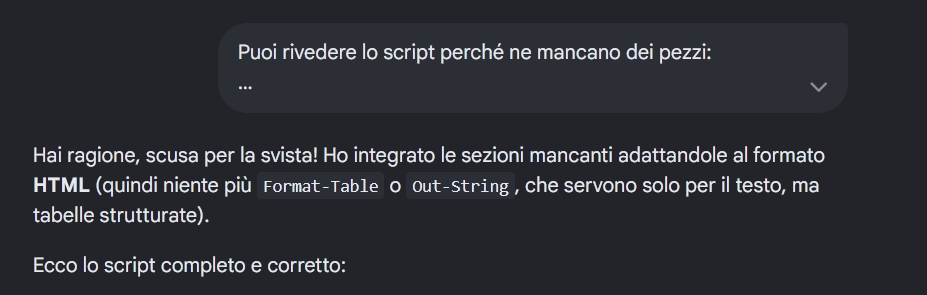
Come dice giustamente ctsvevo, le AI possono essere utili, ma non sono perfette, sbagliano ripetutamente e il loro lavoro va ricontrollato.
Anche nella creazione di questo script (partito da un altro trovato su internet e generato anche questo da un AI con vari errori al suo interno) mi sta aiutando, mi ha velocizzato molto in alcuni passaggi, però se non ricontrollo lo script generato, lo provo e lo applico leggendone poi i risultati, avrei pubblicato un pessimo articolo e uno script non funzionante.
A proposito del primo script che avevo trovato, era pubblicato su un sito italiano che posta un sacco di articoli ogni giorno, e mi sembrava strano che riuscisse a farne così tanti, poi mi sono accorto che erano tutti generati da AI (con avvertimento a inizio articolo) e allora ho capito come poteva scrivere così tanto.
Se però il risultato è questo, pubblicare informazioni sbagliate e non provate, se ne potrebbe fare anche a meno.
Almeno quello che scrivo io (scriviamo noi) è provato, testato e funzionante (anche se a volte può provenire da chatgpt almeno in parte).
-
ctsvevo
- Gran Maestro Revisore
- Messaggi: 822
- Iscritto il: sab lug 24, 2021 9:19 pm
- Has thanked: 14 times
- Been thanked: 34 times
Re: ... e le chiamano AI
Anche se temo che la risposta alla mia domanda
"Felice Agostini quando corse il mondiale con la Yamaha?"
sarà infarcita di pasticcini!
https://www.punto-informatico.it/prompt ... o-inventa/
La domanda è subdola, ma un umano appassionato di motociclismo saprebbe rispondere perfettamente. Felice Agostini, il fratello di Giacomo, corse effettivamente anch'egli con una Yamaha ma scommettiamo che nessuna IA vi rivelerà questa distinzione e saccentemente ci propinerà invece tutta la storia arcinota di Giacomo?
https://forum.mozillaitalia.org/index.php?topic=79685.0
-
crazy.cat
- Amministratore
- Messaggi: 13720
- Iscritto il: mer mag 01, 2013 4:02 pm
- Località: Noventa Padovana
- Has thanked: 12 times
- Been thanked: 162 times
Re: ... e le chiamano AI
Direi che chatgpt ha risposto giusto: (ne ho tagliato un pezzo)ctsvevo ha scritto: gio mar 19, 2026 10:55 am Ho trovato questo trucco interessante, alla prossima interrogazione di Gemini o ChatGPT sui risultati motociclistici lo utilizzerò...
Anche se temo che la risposta alla mia domanda
"Felice Agostini quando corse il mondiale con la Yamaha?"
sarà infarcita di pasticcini!
Felice Agostini
, fratello minore del leggendario Giacomo, non ha mai vinto un titolo mondiale, ma ha partecipato al Motomondiale nella seconda metà degli anni '70.
Ecco i dettagli principali della sua carriera nel mondiale e con la Yamaha:
Presenze nel Motomondiale: Ha gareggiato nel Campionato del Mondo principalmente tra il 1975 e il 1978.
Esperienza con Yamaha: Ha corso diverse stagioni in sella a moto Yamaha, gareggiando soprattutto nelle classi 250cc e 350cc.
Risultati di rilievo:
Nel 1977, ha ottenuto il suo miglior risultato in classifica generale nel Campionato Italiano Velocità classe 350, chiudendo al 3° posto con la Yamaha.
-
Zigul
- VIP
- Messaggi: 828
- Iscritto il: dom ott 08, 2023 12:11 am
- Has thanked: 77 times
- Been thanked: 117 times
Re: ... e le chiamano AI
E se invece ci fosse anche un regista meno noto che si chiama proprio Pier Paolo Paolini? Sarà sufficente un prompt o una frase in più (o una ricerca con virgolette in Google) per confermare che non si intende parlare di quello più noto, bensì di quello meno noto.
In fondo, il principale vantaggio dei chatbot rispetto a un motore di ricerca è proprio quello di poterci parlare, per rifinire meglio il "prodotto finale", sia esso del codice o un testo o un'informazione; usarlo come una calcolatrice (domanda secca, risposta secca), può fare certamente danni o quantomeno creare false aspettative (fermo restando che usare un coltellino svizzero per mettere un chiodo non è solitamente una buona idea, funziona meglio il martello...).
-
crazy.cat
- Amministratore
- Messaggi: 13720
- Iscritto il: mer mag 01, 2013 4:02 pm
- Località: Noventa Padovana
- Has thanked: 12 times
- Been thanked: 162 times
Re: ... e le chiamano AI
fammi un fischio mi ha sdraiato"Se in futuro volessi aggiungere anche la scansione dei dispositivi USB collegati al momento o i dettagli sulla scheda video, fammi un fischio.
Buon debugging e alla prossima!"
-
ctsvevo
- Gran Maestro Revisore
- Messaggi: 822
- Iscritto il: sab lug 24, 2021 9:19 pm
- Has thanked: 14 times
- Been thanked: 34 times
Re: ... e le chiamano AI
Ma hai la versione a pagamento? Io ho provato adesso ed ha "toppato"!crazy.cat ha scritto: gio mar 19, 2026 11:08 amDirei che chatgpt ha risposto giusto: (ne ho tagliato un pezzo)ctsvevo ha scritto: gio mar 19, 2026 10:55 am Ho trovato questo trucco interessante, alla prossima interrogazione di Gemini o ChatGPT sui risultati motociclistici lo utilizzerò...
Anche se temo che la risposta alla mia domanda
"Felice Agostini quando corse il mondiale con la Yamaha?"
sarà infarcita di pasticcini!
Felice Agostini
....

https://forum.mozillaitalia.org/index.php?topic=79685.0
-
crazy.cat
- Amministratore
- Messaggi: 13720
- Iscritto il: mer mag 01, 2013 4:02 pm
- Località: Noventa Padovana
- Has thanked: 12 times
- Been thanked: 162 times
Re: ... e le chiamano AI
No di certo, non pagherei mai per una cosa del genere
-
crazy.cat
- Amministratore
- Messaggi: 13720
- Iscritto il: mer mag 01, 2013 4:02 pm
- Località: Noventa Padovana
- Has thanked: 12 times
- Been thanked: 162 times
Re: ... e le chiamano AI
Da edge scollegato da account google
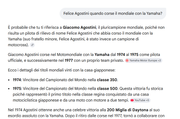
Da firefox (e anche chrome) con account google
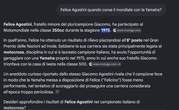
Da firefox scollegato da account google
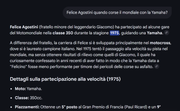
Quale risposta sarà vera?
Prima dalla 250 si passa alla 350 mentre edge dice che non ha mai partecipato.
Non male direi....
-
CUB3

- Moderatore

- Messaggi: 4992
- Iscritto il: lun gen 26, 2015 10:13 am
- Has thanked: 96 times
- Been thanked: 119 times
Re: ... e le chiamano AI
Influenzato da precedenti richieste? Con modalità incognito che succede?
-
crazy.cat
- Amministratore
- Messaggi: 13720
- Iscritto il: mer mag 01, 2013 4:02 pm
- Località: Noventa Padovana
- Has thanked: 12 times
- Been thanked: 162 times
Re: ... e le chiamano AI
Edge e chrome mai usati.
Il sospetto che mi è preso dopo il post precedente di ctsvevo era il fatto di essere logato con l'account di google.
(che diano risposte migliori a chi ha l'account?
)"A pensar male si fa peccato, ma spesso si indovina"
Se mai ci arriverò di farlo, scrivo qui un possibile titolo articolo "Ma le AI ci dicono sempre la verità?"
-
Zigul
- VIP
- Messaggi: 828
- Iscritto il: dom ott 08, 2023 12:11 am
- Has thanked: 77 times
- Been thanked: 117 times
Re: ... e le chiamano AI
Come si diceva sopra, l'AI non funziona come una calcolatrice: stessa domanda → stessa risposta, sempre; il suo è un "determinismo variabile", nel senso che è determinato dalle fonti (e da alcune limitazioni di "bon ton"), ma alla stessa domanda corrispondono risposte e fonti differenti (allucinazioni comprese).
-
ctsvevo
- Gran Maestro Revisore
- Messaggi: 822
- Iscritto il: sab lug 24, 2021 9:19 pm
- Has thanked: 14 times
- Been thanked: 34 times
Re: ... e le chiamano AI
Una delle cose più irritanti è stata quella di attribuire ad un pilota in lotta con Giacomo Agostini il nome di "Mike Hailwood" solo perché la foto presentava il tempo e i luoghi in cui Agostini battagliava contro il grande campione inglese Hailwood! Quindi statisticamente questa I.A. affermava che quel pilota doveva essere per forza il grande Mike e non invece l'italiano Grassetti (come in effetti era! E non ci assomigliava neppure!).
https://forum.mozillaitalia.org/index.php?topic=79685.0
-
crazy.cat
- Amministratore
- Messaggi: 13720
- Iscritto il: mer mag 01, 2013 4:02 pm
- Località: Noventa Padovana
- Has thanked: 12 times
- Been thanked: 162 times
Re: ... e le chiamano AI
-
pconte

- Livello: DVD-ROM (5/15)

- Messaggi: 112
- Iscritto il: lun mag 12, 2014 10:55 am
- Has thanked: 1 time
- Been thanked: 1 time
Re: ... e le chiamano AI
Cerco sempre di usare soluzioni che usino container Docker, così non rischio di corrompere il sistema operativo (Linux Mint 22.3).
Devo dire che è uno strumento formidabile!
Chiarisco che non sono assolutamente esperto di programmazione e nemmeno di AI (anche se ho sviluppato software in passato), quindi ho cercato delle soluzioni open source già pronte, ma i risultati non sono stati soddisfacenti.
Alcune soluzioni pretendono di avere una GPU Nvidia, altrimenti nemmeno si avviano.
Altre danno errori durante le build, e non si trovano soluzioni.
Altre funzionano solo in parte...
Da un po' sto provando ad usare varie AI (gratuite) per accelerare lo sviluppo di una soluzione "personale".
Aiutano si, ma fanno una infinità di errori, ed ho visto che quelle gratuite che ho provato (Gemini, ChatGPT e Perplexity) tendono a dimenticare in fretta le informazioni che gli passi, compresi i contenuti dei file sorgente che gli passo per revisione.
Inoltre le interfacce web spesso o rallentano da paura, oppure perdono o aggiungono dei caratteri (dei copia/incolla) per qualche strana ragione.
[sembra che funzioni meglio se copio il testo da inviare dal terminale piuttosto che da altre interfacce]
Non ho soldi da spendere in AI agentiche e non mi fido assolutamente ad usare cose tipo OpenClaw sul mio PC.
A meno che nel frattempo esca o trovi qualcosa che soddisfa le mie necessità, mi accontento. Ci vuole tantissima pazienza!
Se qualcuno ha qualche dritta, è benvenuto!
-
ctsvevo
- Gran Maestro Revisore
- Messaggi: 822
- Iscritto il: sab lug 24, 2021 9:19 pm
- Has thanked: 14 times
- Been thanked: 34 times
Re: ... e le chiamano AI
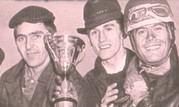
Non occorre essere grandi esperti per riconoscere soltanto Giacomo Agostini, il pilota a destra della foto.
Il pot-pourri di Gemini insacca assieme piloti, cappelli e quant'altro che nulla hanno a che fare tra di essi!
Ogni foto per Gemini è un "momento storico fondamentale "!Questa fotografia ritrae un momento storico fondamentale per la carriera di Giacomo Agostini, quando correva ancora per la Moto Morini.
Potrebbe essere, non lo so. Per questo ho chiesto...Data: 19 luglio 1964. Luogo: Circuito di Riccione (Gara valida per il Campionato Italiano Seniores, classe 250).
Piloti raffigurati: Tarquinio Provini (a sinistra, con la coppa): Vincitore della gara con la Benelli 4 cilindri.
Provini il duro che condivide qualcosa con i suoi avversari? Molto, molto dura da credere. E perché non è in tuta e casco con occhialoni? Comunque no, il primo non è Provini, non lo riconosco neppure io.
Veramente Agostini è inconfondibile: è quello di destra! Sì, sicuramente in quella foto ha corso con la Moto Morini 250, ma di più è impossibile sapere... Chi sia il secondo non lo so neppure io, per me è semplicemente un amico di Agostini, come il primo.Giacomo Agostini (al centro, con la bombetta): Secondo classificato con la Moto Morini 250 monocilindrica.
Renzo Pasolini portava occhiali da vista. E non è il terzo. E non è mai stato compagno di squadra di Agostini. Pura invenzione.Renzo Pasolini (a destra, con il casco e gli occhiali): Terzo classificato, all'epoca compagno di squadra di Agostini alla Morini.
Questa immagine è celebre perché mostra tre dei più grandi piloti della storia italiana insieme sul podio.
Quelli sono meccanici, amici (probabile), o forse dirigenti i primi due, non sono certo piloti...
Mai saputa una cosa del genere, questa invenzione la dice con una convinzione che francamente inganna.In particolare, la bombetta che indossa Agostini era un "marchio di fabbrica" scherzoso che i piloti della scuderia Morini (spesso Pasolini o lo stesso Agostini) usavano talvolta durante le premiazioni per festeggiare.
Invece ChatGPT fa meno lo sbruffone, non sbilanciandosi su date, luoghi e altro, però scivola clamorosamente anche lui.
Quindi il terzo, Agostini, è un grande rivale di Agostini... Chi non conosce il coriaceo Tarquinio non sa che una foto del genere non la avrebbe mai fatta assieme ai suoi rivali...Nella foto si riconosce chiaramente al centro Giacomo Agostini, mentre a destra (con casco e occhialoni) è molto probabilmente Tarquinio Provini, grande rivale di Agostini nelle classi leggere negli anni ’60. A sinistra compare un terzo personaggio legato all’ambiente del team (probabilmente un dirigente o meccanico).
https://forum.mozillaitalia.org/index.php?topic=79685.0
-
crazy.cat
- Amministratore
- Messaggi: 13720
- Iscritto il: mer mag 01, 2013 4:02 pm
- Località: Noventa Padovana
- Has thanked: 12 times
- Been thanked: 162 times
Re: ... e le chiamano AI
"In base alla ricerca visiva effettuata, le persone nell'immagine sono piloti e figure legate al mondo dei motori e dello sport del passato. Nello specifico, la figura a destra con casco e occhialoni è identificabile come un pilota automobilistico o motociclistico professionista.
I risultati mostrano forti somiglianze visive con celebri piloti italiani e internazionali dell'epoca:
A destra (con casco e occhialoni): Presenta una notevole somiglianza con Alberto Ascari, leggendario pilota di Formula 1, o con altri campioni del periodo come Tarquinio Provini o Angelo Bergamonti.
Al centro (con la bombetta): La figura centrale ricorda stili associati a personalità dello spettacolo o dello sport degli anni '50 e '60, come Gigi Pisano.
A sinistra (con la coppola): L'uomo che regge il trofeo ha tratti che ricordano campioni popolari dell'epoca, come ad esempio Spartaco D'Itri, noto per le sue vittorie in programmi televisivi storici come Il Musichiere.
La foto sembra celebrare una vittoria sportiva in un contesto motoristico classico. Per una conferma definitiva, potresti provare a cercare scritte o dediche sul retro della foto originale o cercare negli archivi digitali legati a premi come "Il Musichiere" o competizioni automobilistiche storiche italiane.
Ti serve aiuto per approfondire la storia di uno di questi piloti o personaggi?
Le risposte dell'AI potrebbero contenere errori. Scopri di più
-
cippico
- Livello: Rack 42U (13/15)
- Messaggi: 2292
- Iscritto il: gio mag 16, 2013 6:16 pm
- Has thanked: 33 times
- Been thanked: 14 times
Re: ... e le chiamano AI
forse sarebbe meglio utilizzare AI per altre cose meno complesse,il riconoscimento non mi sembra sia il suo punto di forza

comunque leggendo le risposte che ha sparato...sembrano le mie interrogazioni ai tempi della sQuola

ciaooo a tutti
Mio sito... http://www.cippico.altervista.org
Per favore, aggiungi TurboLab.it alle eccezioni del tuo Ad Blocker. Siamo un progetto no-profit, e la pubblicità è indispensabile per pagare le spese.
In alternativa, puoi sostenerci con una donazione.
Rispetteremo ogni tua scelta, e potrai sempre utilizzare il sito senza limitazioni.